
Panels and packages
Notebook side panels help you inspect session state, follow dependencies, and manage runtime packages without leaving the note.
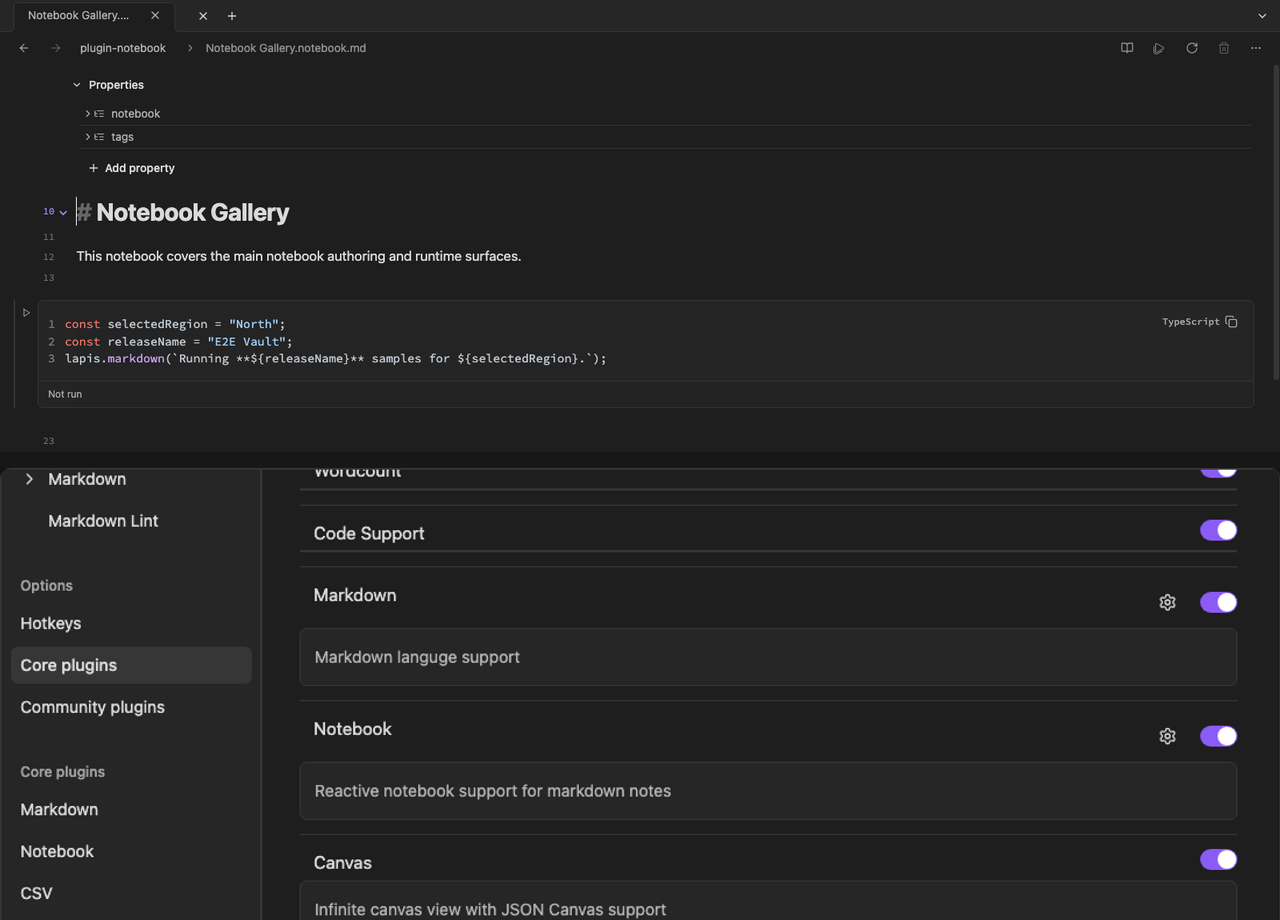
Variables (Sources)
Section titled “Variables (Sources)”Open Variables from the notebook menu (labeled Sources in the menu). This panel shows:
- declared and used variables from the dependency graph
- DuckDB data sources with schema previews when DuckDB is active
- navigation from a variable row to the owning cell
Expand a DuckDB table entry to preview rows inside the panel.
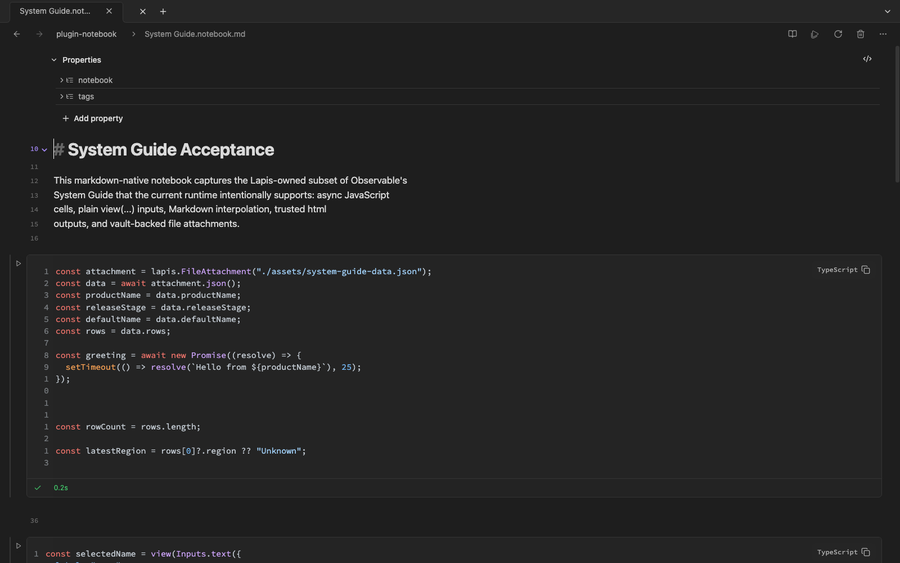
Dependencies
Section titled “Dependencies”The Dependencies panel has two tabs:
- Minimap — notebook-order view with direct and transitive dependency glyphs
- Graph — DAG layout with selectable edges and cell detail popups
Use it to understand rerun order and find upstream cells that made a result stale.
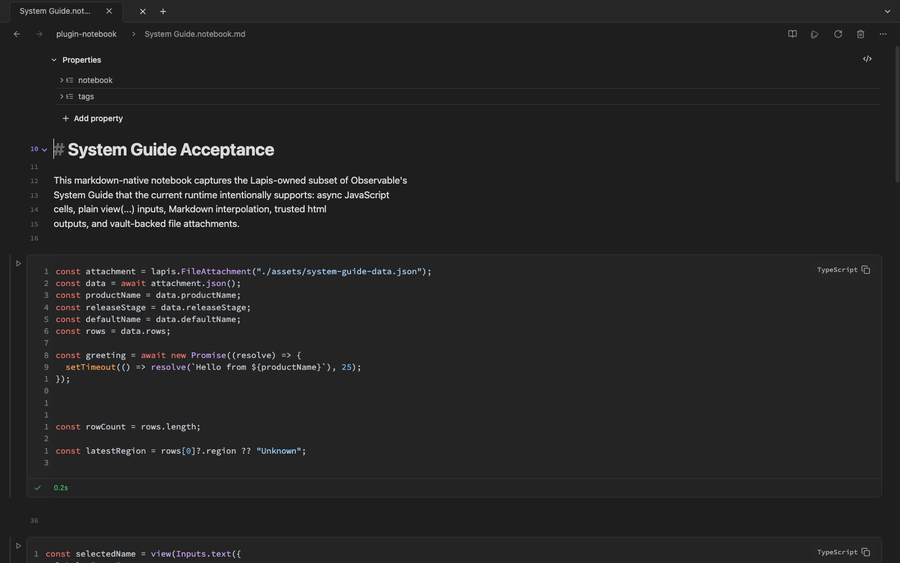
Packages
Section titled “Packages”The Packages panel manages npm packages for notebook runtime imports:
- search the npm registry and install packages
- review direct, indirect, and available imports for the active notebook
- update or remove installed runtime descriptors
Installed packages can be imported in cells or exposed as configured globals. The panel stays available even when no notebook is active, though usage sections hide until a notebook is open.
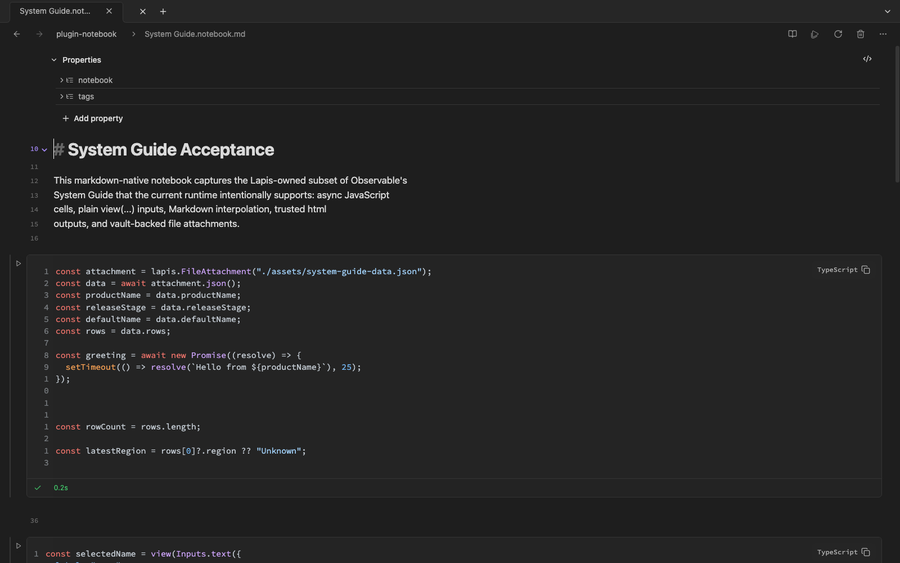
Notebook menu actions
Section titled “Notebook menu actions”From the notebook view menu you can toggle:
- Variables / Sources
- Dependencies
- Packages
- Auto-run stale cells on edit