
Getting started with notebooks
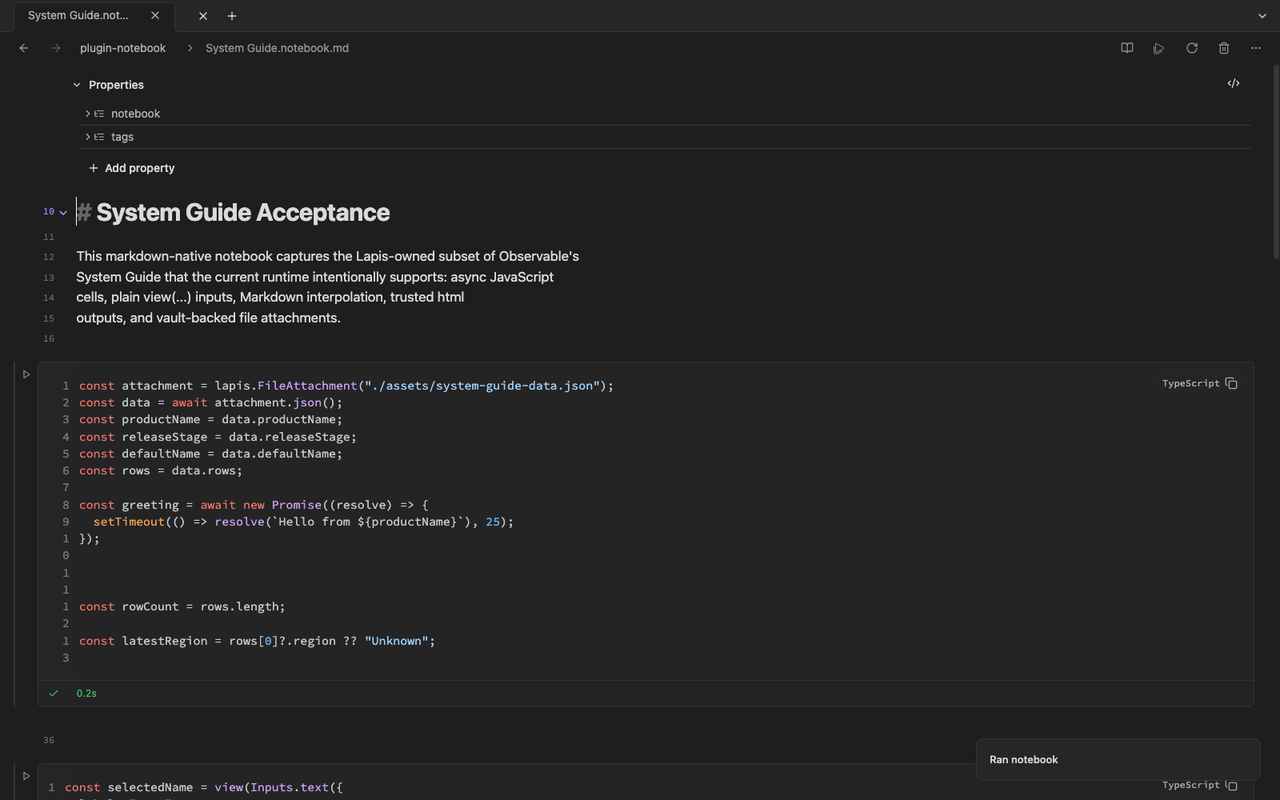
Notebook notes use the .notebook.md suffix. Lapis opens them in the Notebook
view by default, where you can run cells and inspect results beside the source.
Create or open a notebook
Section titled “Create or open a notebook”- Create a new file that ends in
.notebook.md, or convert an existing note through the command palette (notebook:convert-note-to-notebook). - Open the file in the Notebook view. Source editing and live preview stay in the same tab.
- Add cells with the slash menu in source mode (
/code,/sql,/input,/markdown) or by writing:::celldirectives by hand.
Ordinary markdown outside :::cell blocks stays non-executable prose.
Run a notebook
Section titled “Run a notebook”Execution is explicit. Cells do not auto-run when you open a note unless you turn on auto-run (see Execution and stale cells).
To run work:
- Use Run notebook in the notebook status bar to execute the full note.
- Use the inline Run control on a cell to run just that cell and its downstream dependents.
- Use Rerun stale when upstream values changed and downstream cells need refreshing.
The status bar also shows:
- whether outputs were restored from a previous session or recomputed during the current run
- whether the note is on the worker runtime or in-process runtime
- whether Safe Mode has blocked execution
Clear outputs without editing source
Section titled “Clear outputs without editing source”Use Clear outputs from the notebook status bar or command palette
(notebook:clear-active-notebook-outputs) to discard generated output state.
Your .notebook.md source file is not changed.
Try the gallery notes
Section titled “Try the gallery notes”The bundled Notebook Gallery and System Guide notes in a fresh vault cover SQL, vault file registration, inputs, markdown interpolation, tables, and file attachments. Use them as reference when building your own notebooks.